Transform Your Home into a Smarter Living Space with Koble. Schedule an appointment today at 8129 4164!

Transform Your Home into a Smarter Living Space with Koble. Schedule an appointment today at 8129 4164!
1. On the Automation tab, tap Create Scene to open the Create Smart wizard.
2. In the Set a condition step, select a trigger condition. In this example, When weather changes are selected.
3. Select a specific condition such as Temperature on the When weather changes page.
4. On the Temperature page, set a temperature value and tap Next. The Set up task step appears.

5. Select a task, such as Execution equipment.
6. Select a device, such as an air conditioner.
7. Set one or more functions on the Select Function page. In this example, the device is set to on, the temperature is set to 26°C, the working mode is set to Cold, and the wind speed is set to high. Tap Next.
8. On the page that appears, tap Save to save the condition and task settings.
9. To add more conditions, tap the plus icon (+) in the top right corner of the page.
10. These options are supported by Add Condition: Launch Tap-to-Run, When weather changes, Schedule, and When device status changes.

Koble Showroom
(With Smart Home Specialist)

Best Smart Switch Singapore (Brands, Buying Guide & Installation)
November 24, 2023
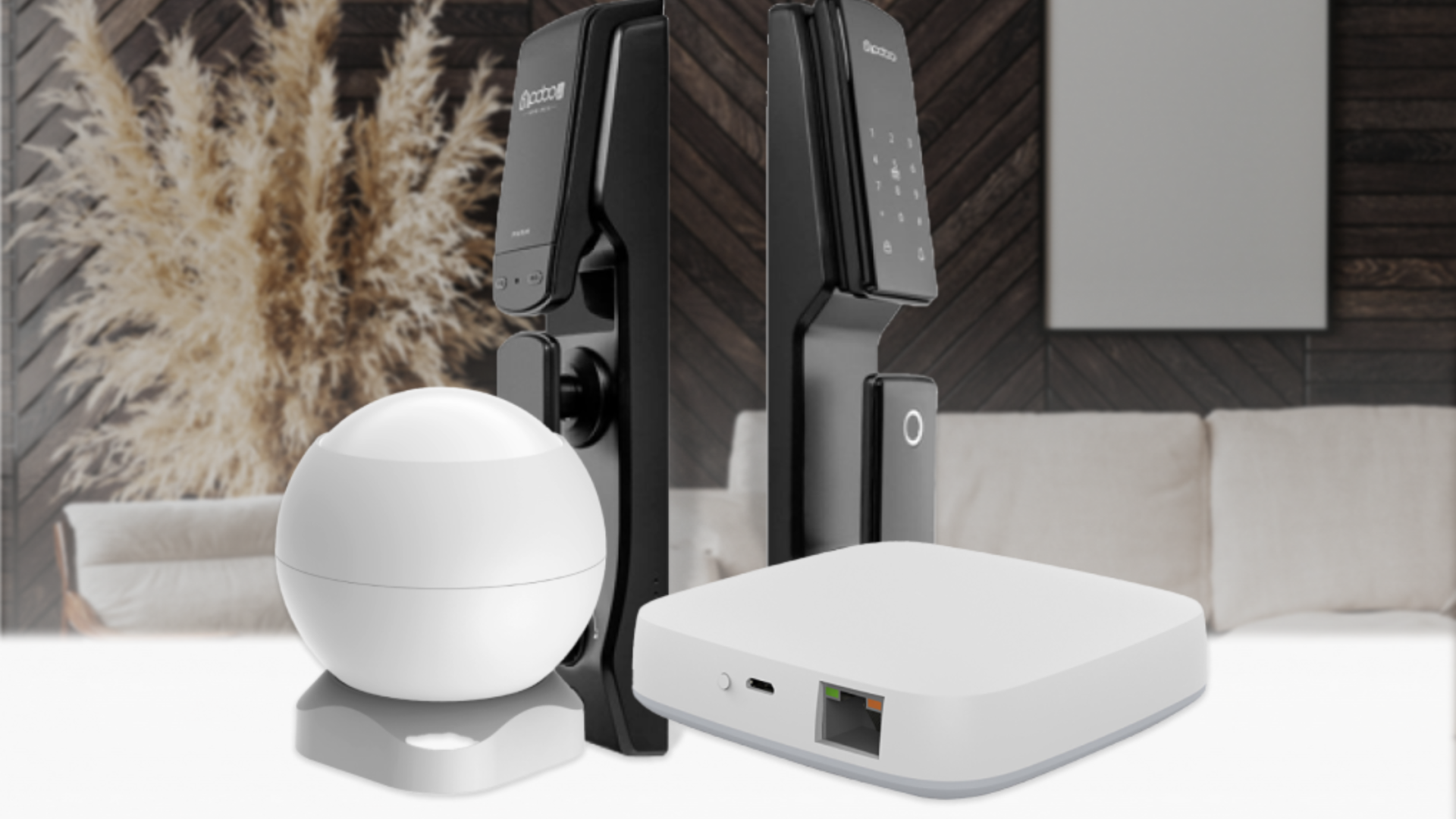
3 Facts About Smart Home Security
July 23, 2021

Smart Home Appliance Installation - A Guide to Embracing Efficiency
May 17, 2024
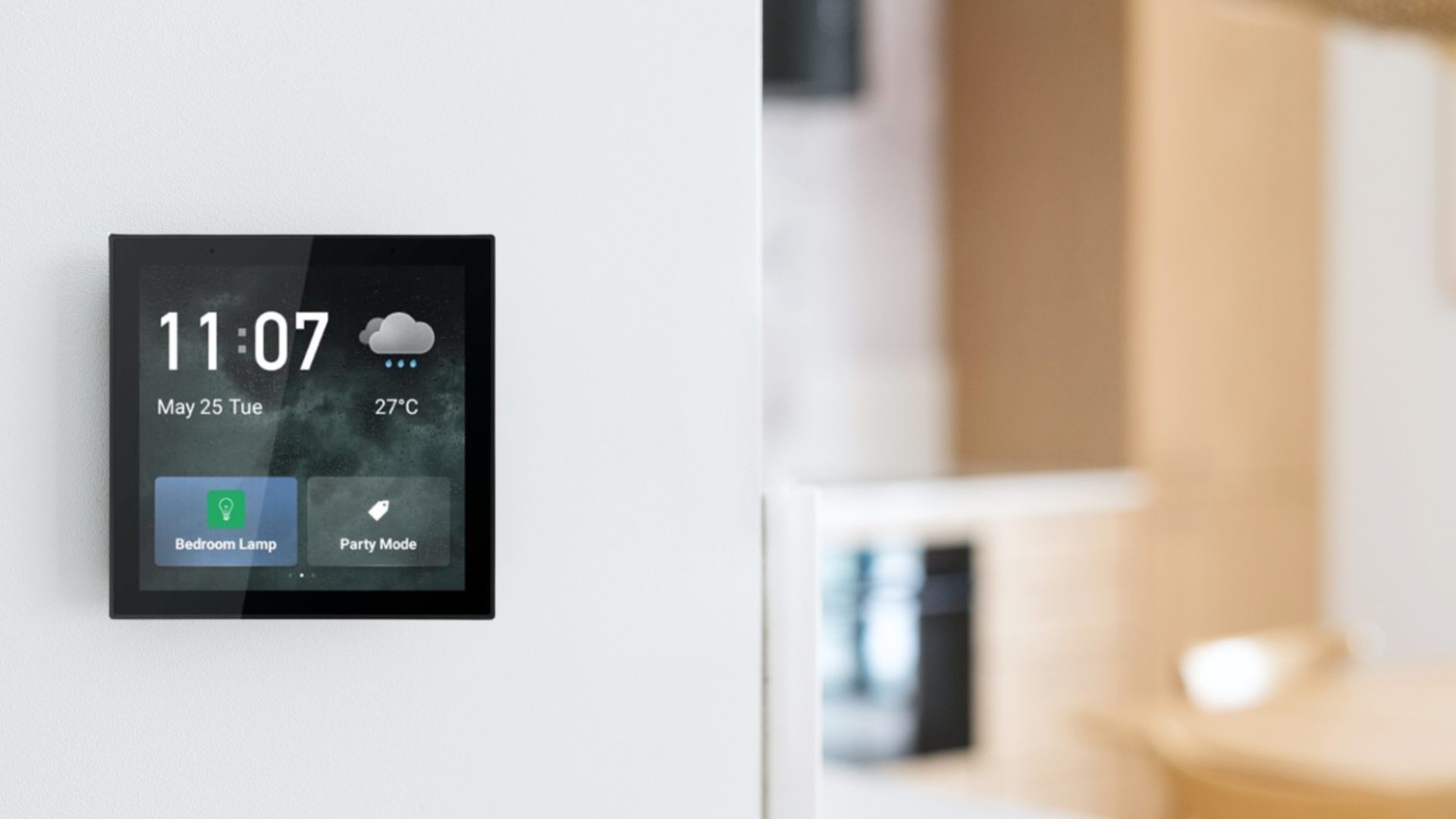
The Ultimate Guide to Setting Up Your Smart Home
April 26, 2024
Koble Smart Home
