Transform Your Home into a Smarter Living Space with Koble. Schedule an appointment today at 8129 4164!

Transform Your Home into a Smarter Living Space with Koble. Schedule an appointment today at 8129 4164!
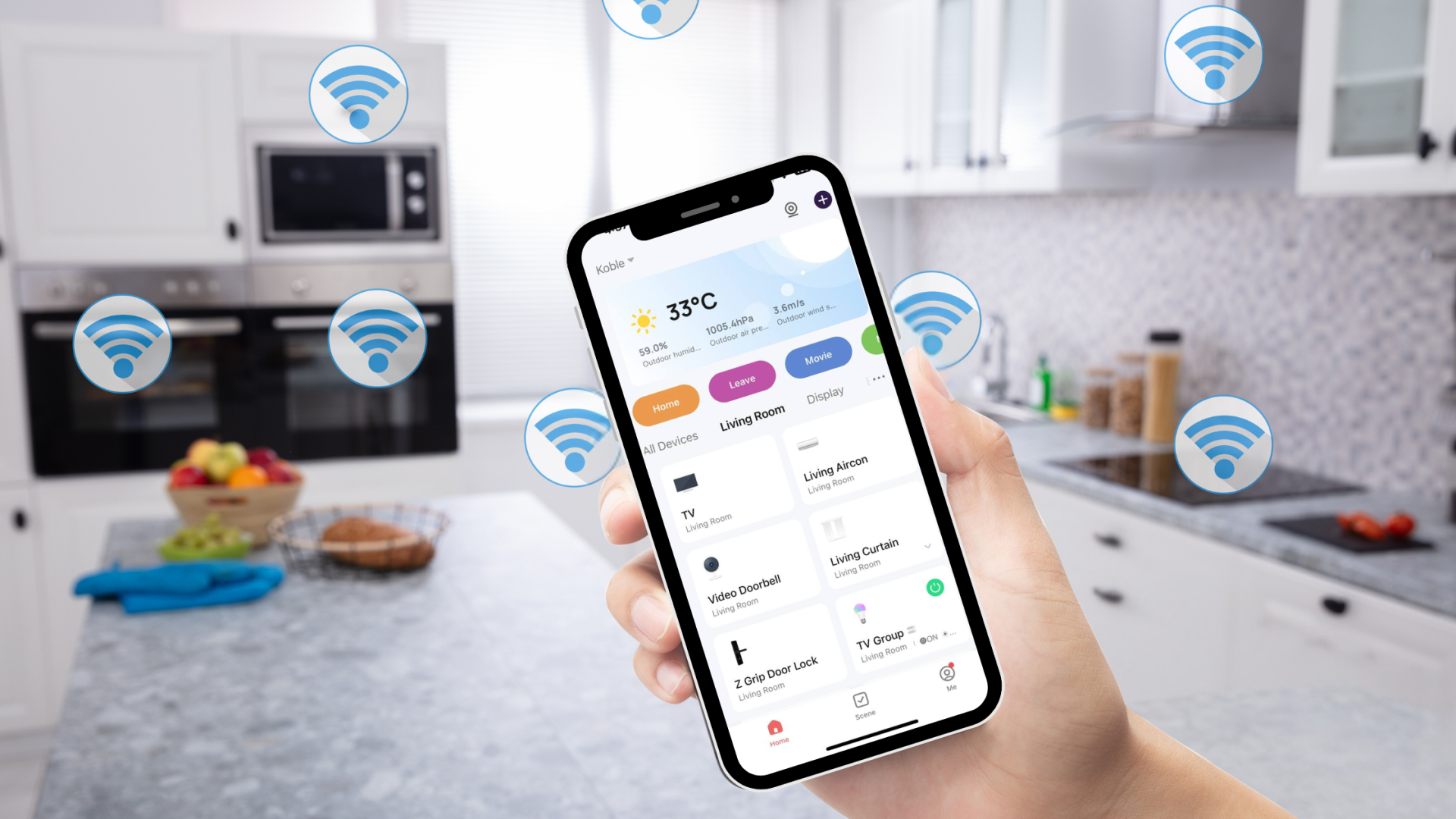
1. Tap Add Device or the plus icon (+) in the top right corner of the Home page to go to the device adding page. On the Add Device tab that appears, devices can be automatically found or manually added. To automatically add devices, the app must be granted Wi-Fi and Bluetooth permissions.
2. If a dual-band network that supports both 2.4 GHz and 5 GHz bands are used, the AP mode can be used to add devices.
3. In AP mode, follow the instructions to enable the indicator to blink slowly, select Confirm the indicator is blinking slowly, and then tap Next.
4. In AP mode, on the Wi-Fi setting page of the mobile phone, find the Wi-Fi hotspot starting with SmartLife.
5. Tap the Wi-Fi hotspot to connect the mobile phone to it.
6. After a successful connection, go back to the app to start pairing. The Wi-Fi hotspots of certain devices might use a custom name. The mobile phone must be connected to a 2.4 GHz Wi-Fi network.
7. The device pairing page on the app appears again and the pairing process continues. After the device is added, the user can customize the device name and specify the room where the device is located. A device name can contain a maximum of 64 characters.
8. If pairing fails, apply the tips in the following third figure from the left to troubleshoot the issues.
Koble Showroom
(With Smart Home Specialist)

5 Smart Home Products for the Ultimate Home Setup
May 10, 2020
Can Your Smart Home Still Function Without the Internet?
September 27, 2024
Transform Your Living Space with Smart Home Solutions in Singapore
June 28, 2024

Turning a DBSS Flat into a Film Set Worthy Smart Home
January 28, 2023
Koble Smart Home
